Guide
From a user's request to shipped code
This guide follows one request all the way. Marie, a user of Sara's habit tracker, reports that the CSV export shows dates in US format. Vicunia writes a spec, Sara approves it, her coding agent fixes it on her laptop, and the fix is merged, deployed and announced to Marie. Setup takes about 15 minutes.
Before you start
Vicunia coordinates the work; it never writes, hosts or deploys your code. Here is what does what:
- Vicunia (this website and app) receives requests, writes specs, applies your rules, asks for your approval, opens the pull request, watches CI and the deploy, and tells everyone what happened.
- The runner is a small command-line program,
vicunia, on your own machine. It runs your coding agent on your code, runs your tests and pushes a branch with your own git credentials. Your code never reaches Vicunia. - GitHub hosts the repository, runs CI and reports deployments. Vicunia talks to it through the Vicunia GitHub App.
You need:
- A GitHub repository with a test command (for example
npm test), ideally CI on pull requests, and squash merging allowed. - A computer that stays on while jobs run, with Node.js 22 or later, git, and push access to the repository.
- A coding agent that runs from the command line. Claude Code is the default; Codex, Aider and others work too.
- Optional: Telegram, to approve from your phone. Email works without any setup.
1. Create your account
Go to vicunia.si/login and choose Continue with Google. That creates your account on the Free plan, with no card needed. You land in the inbox, which stays empty until you add a project.
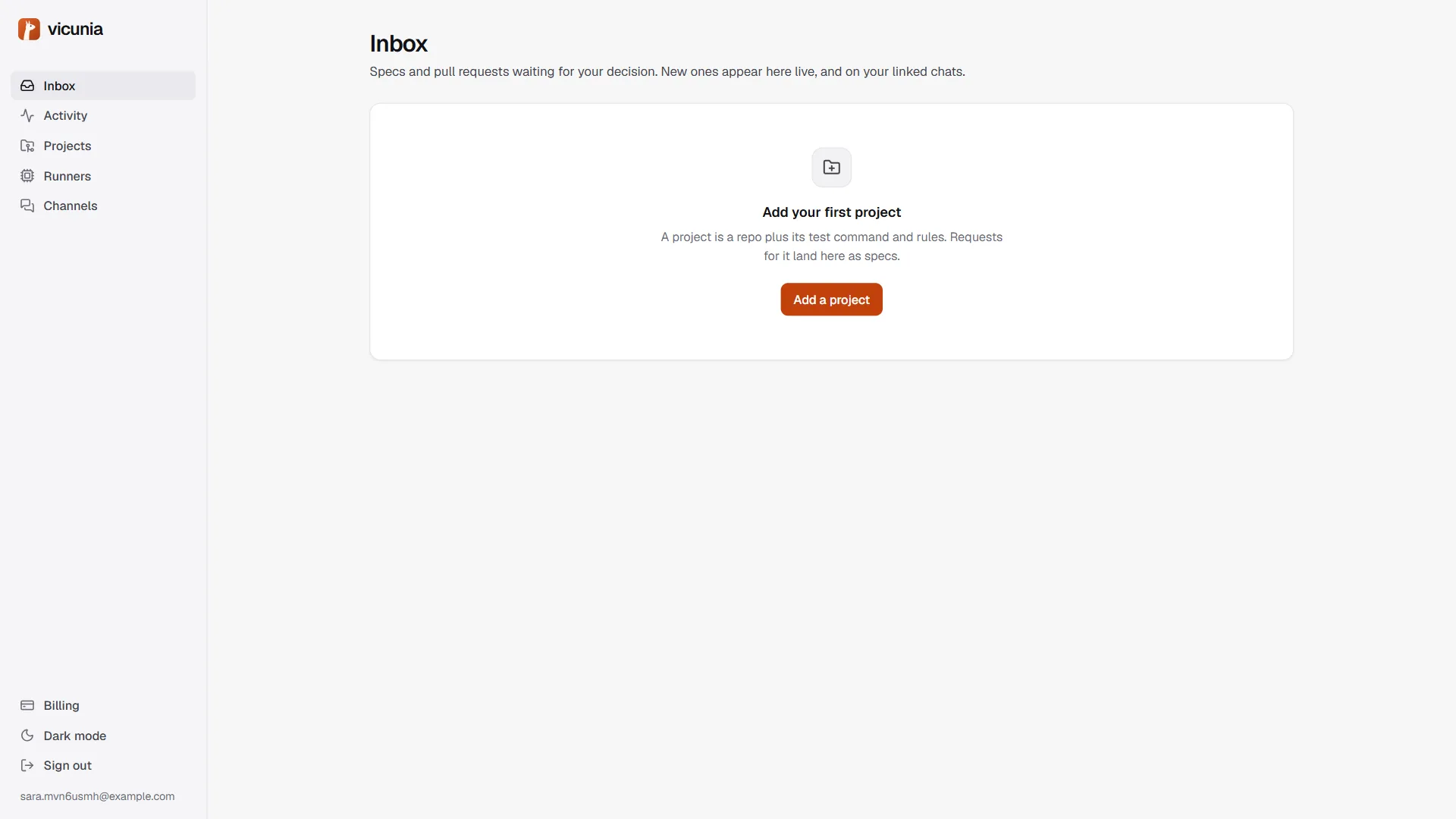
The left menu is the whole app:
- Inbox: specs and pull requests waiting for your decision.
- Activity: every request and where its job is, live.
- Projects: your apps, with their sources, rules and GitHub connection.
- Runners: the machines that build for you.
- Channels: Telegram, email and quiet hours.
2. Add a project
A project is one of your apps. Open Projects → Add project and fill in:
- Name: anything. Its short form, the slug (here
habits), is how you address the project from chat. - GitHub repository:
owner/name, for examplesara/habits. - Deploy URL: the address of the live app. Vicunia checks it answers after each deploy.
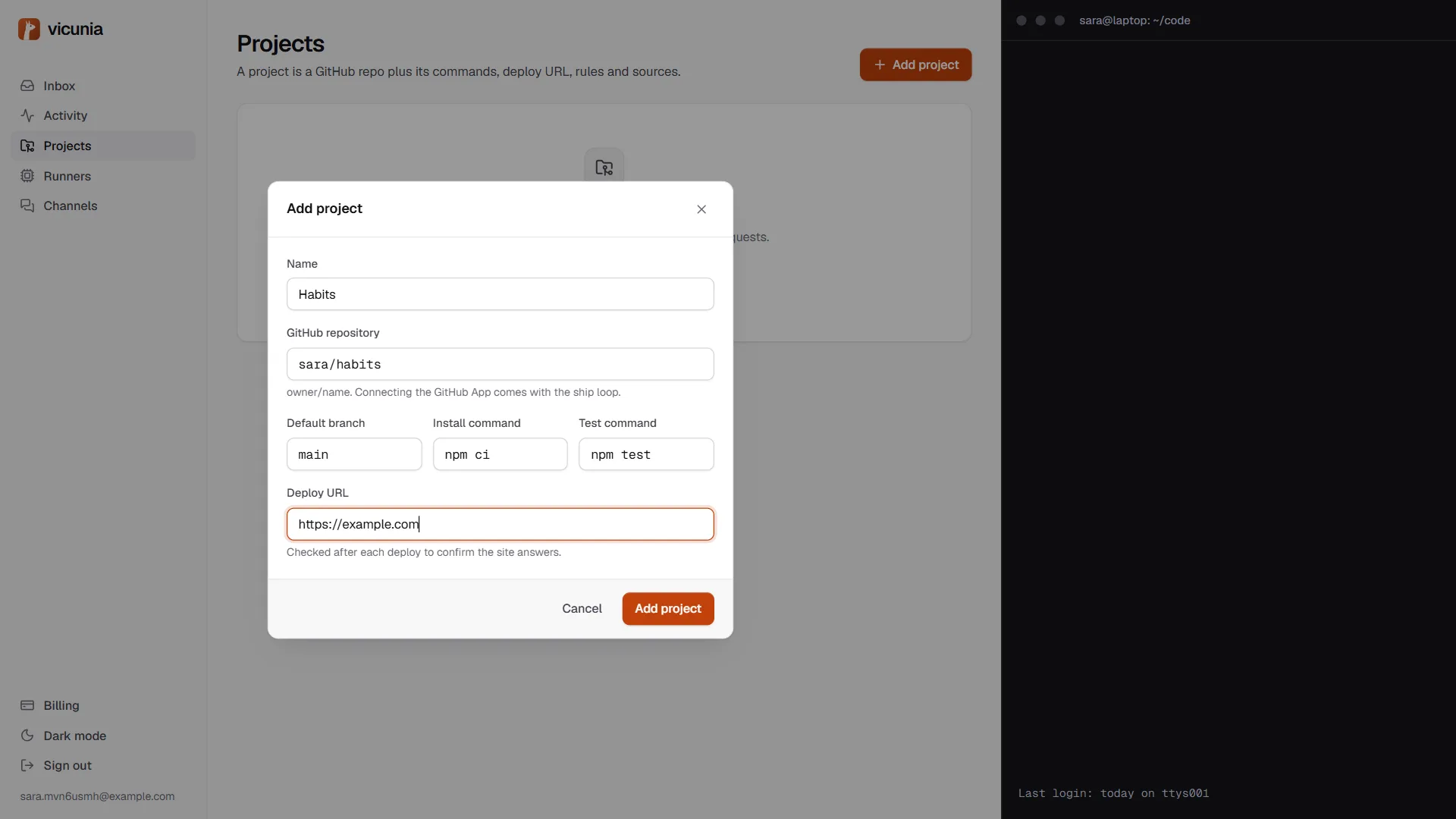
The project page opens. Under Settings at the bottom, check the rest:
- Default branch, usually
main. - Install command and Test command, for example
npm ciandnpm test. The runner runs exactly these. - When is a change shipped? "After a successful deployment and a smoke check" if your host (Vercel, Netlify and most others) reports deployments to GitHub. Otherwise "As soon as the pull request merges".
- Deployment environment: the GitHub environment to wait for,
Productionby default.
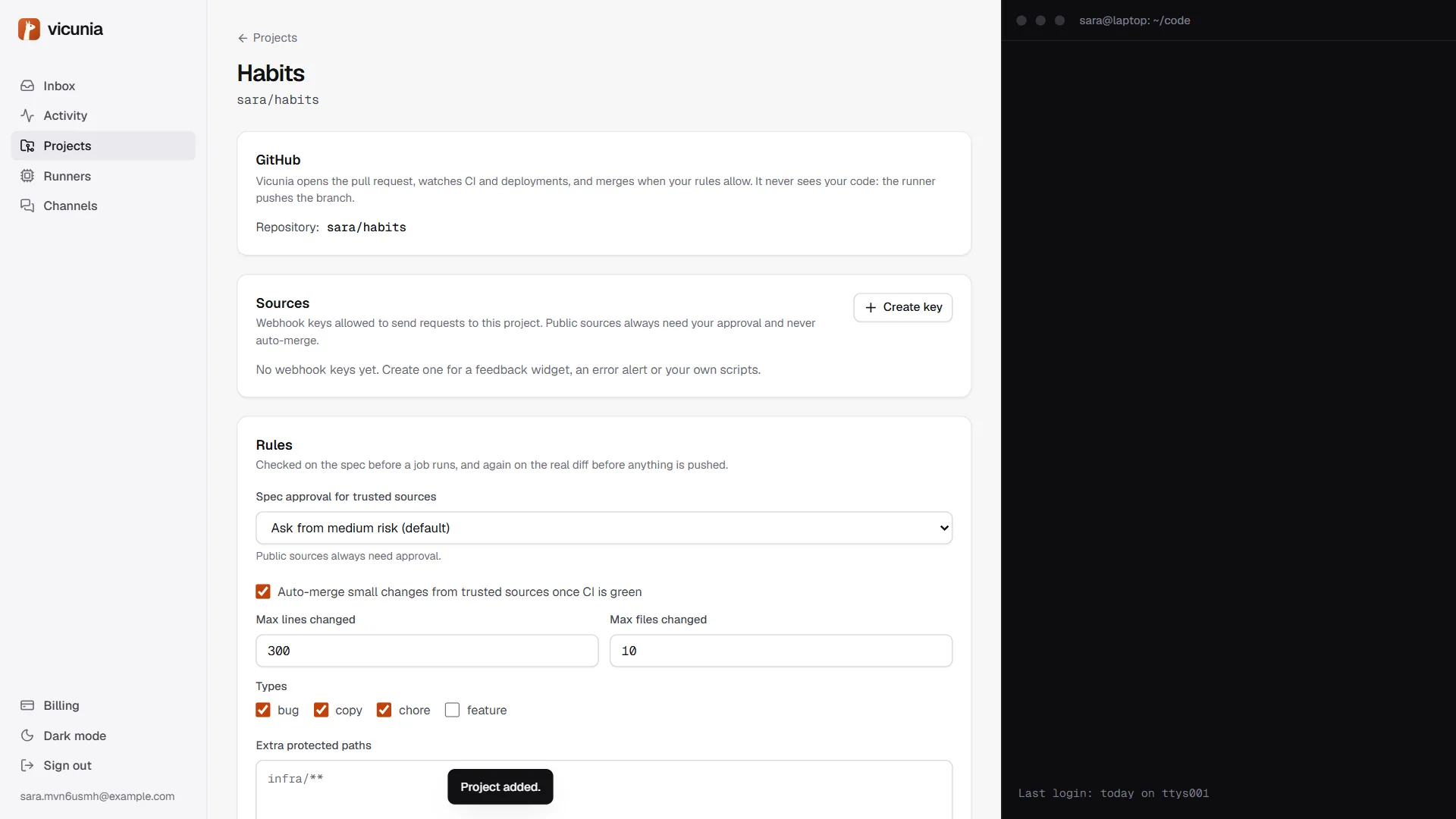
3. Connect GitHub
On the project page, the GitHub card has a Connect GitHub button. GitHub asks where to install the Vicunia app and which repositories it may access; pick only the ones you want Vicunia to work on. You come back to the project, where you pick the repository.
The app can open, read and merge pull requests, and read checks, statuses and deployments. It can't read your code through Vicunia: the runner pushes branches itself.
4. Set the rules
Rules decide what needs you. They run twice: on the spec before any work starts, and on the real diff before anything is pushed. Every card shows the reasons in plain words.
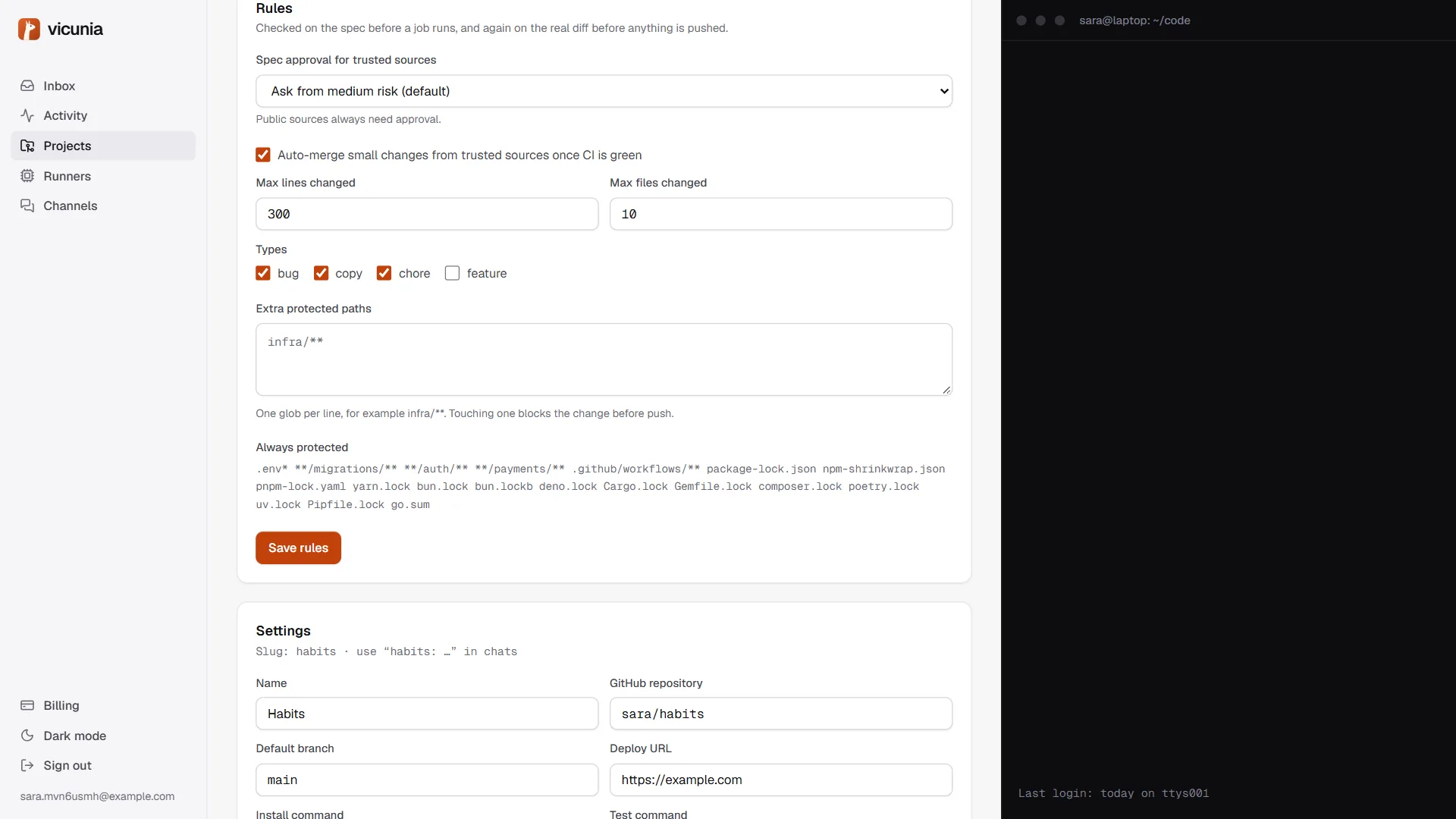
- Spec approval for trusted sources: always ask, ask from medium risk (the default), ask only for high risk, or never ask.
- Auto-merge small changes from trusted sources once CI is green, within a maximum of lines and files changed, and only for the types you tick (bug, copy, chore, feature). Auto-merge is part of Pro.
- Extra protected paths, one glob per line, for example
infra/**.
Some rules can't be turned off:
- Requests from public sources (anything your users can type into) always need your approval, and their pull requests never merge on their own.
- A change that touches a protected path is blocked before push:
.env*, migrations,auth,payments,.github/workflowsand lockfiles, plus your extras.
5. Connect a runner
Open Runners → Add a runner, give it a name, and choose Create token. Copy the login command: the token is shown once.
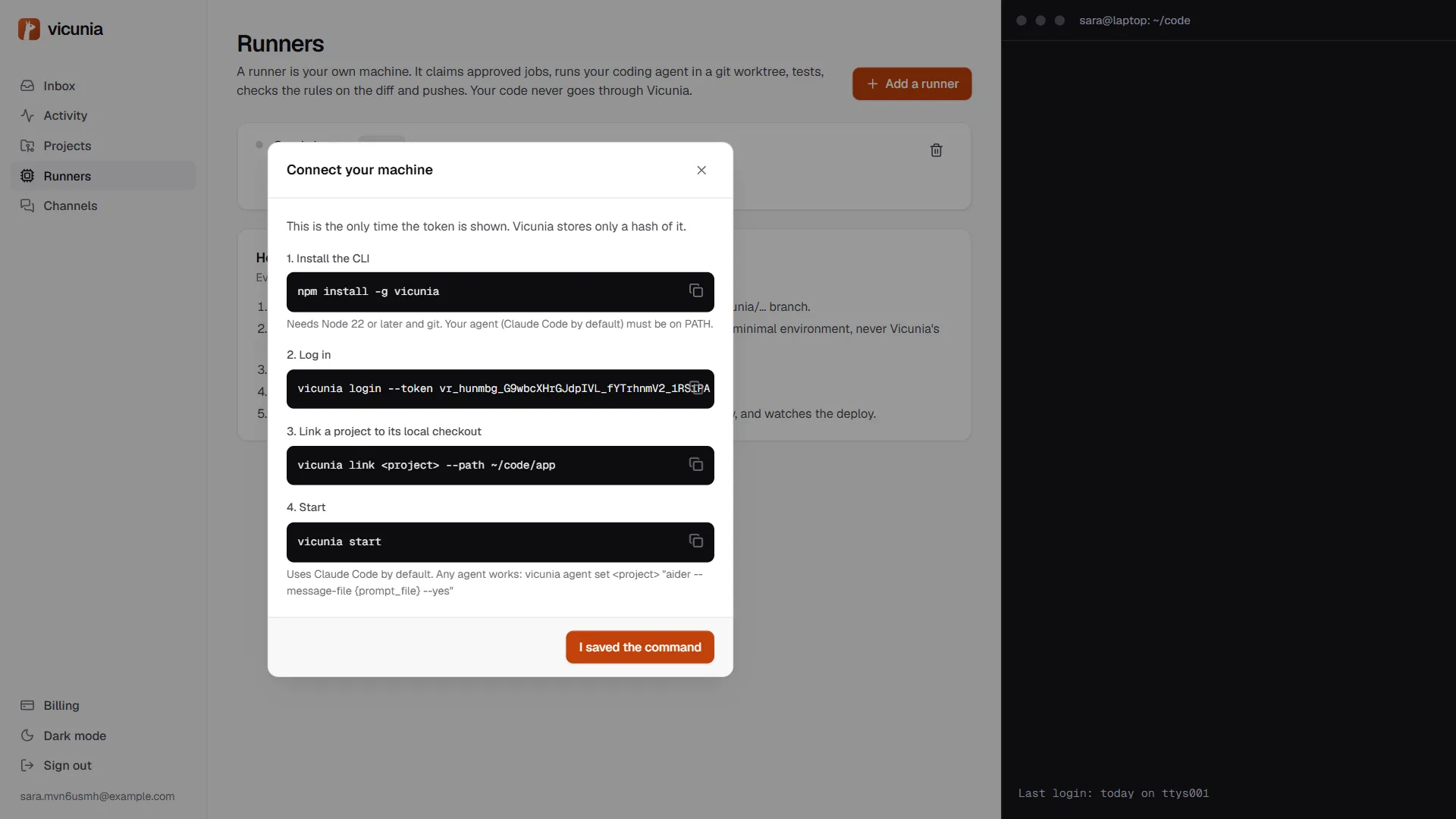
On your machine:
npm install -g vicunia                       # Node 22+
vicunia login --token vr_… --server https://actions.vicunia.si
vicunia link habits --path ~/code/habits     # your existing checkout
vicunia start
vicunia linkprints the install and test commands it will run and pins them on your machine. If they're changed on the server, the runner refuses the job until you link again, so nobody can make your machine run something new.vicunia startwaits for approved jobs. Leave it running, in a terminal or as a service. The first Ctrl-C hands the current job back to the queue.
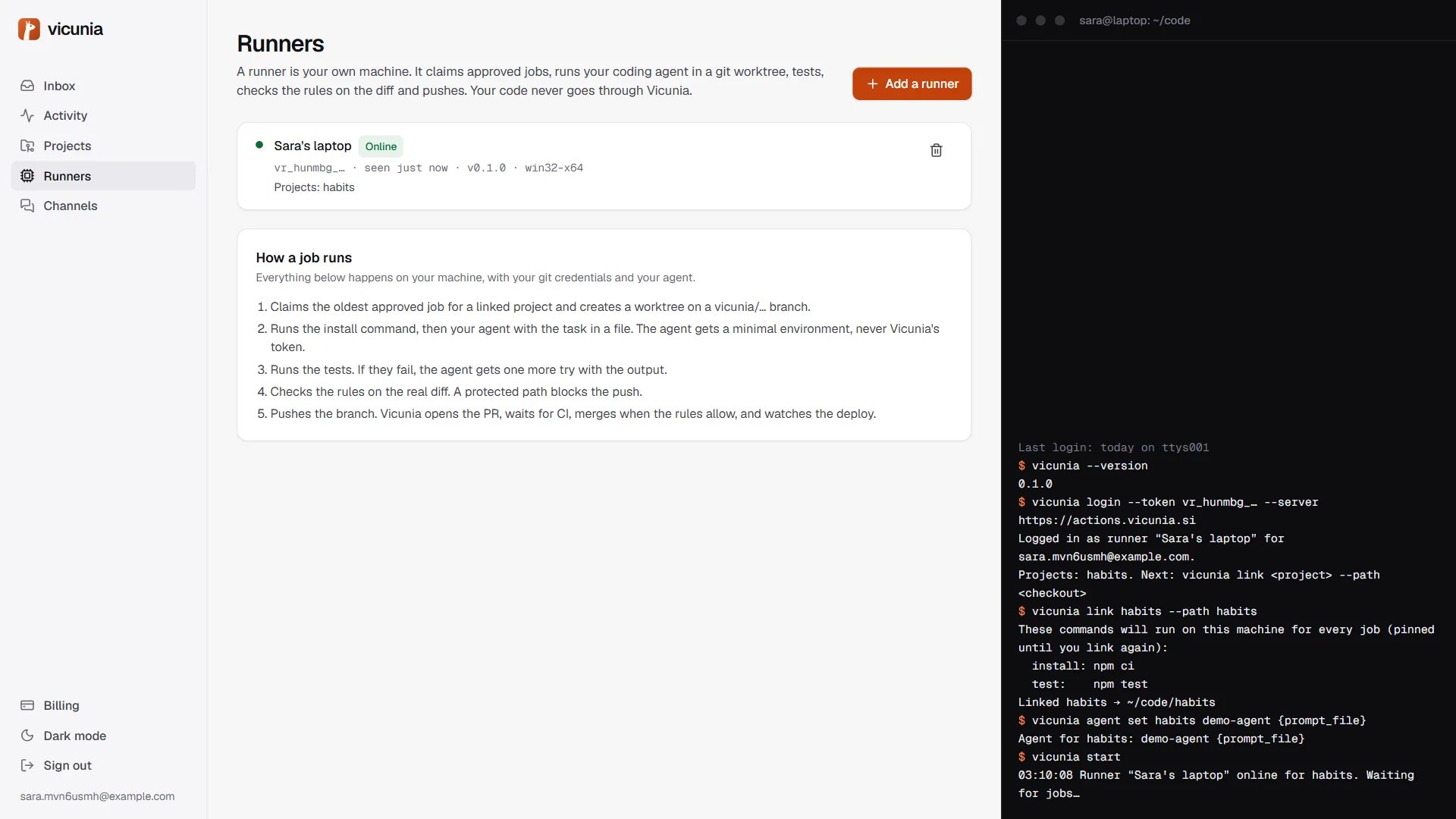
Choose the agent
The default agent is Claude Code in headless mode: it may edit files, run git and your test command, and nothing else. Make sure claude is installed and signed in on this machine. To use another agent, give a command that reads its task from {prompt_file}:
vicunia agent set habits "aider --message-file {prompt_file} --yes-always"
vicunia env allow ANTHROPIC_API_KEY          # pass one more variable to the agent
The agent gets a minimal environment, never Vicunia's secrets. The task file contains the spec and, clearly marked as data, the user's original words.
6. Send requests
A request is a sentence from you or your users. There are four ways in.
From the inbox
The box at the top of the inbox: pick the project, type the change, Send request. Your own requests count as trusted.
From your app, with a webhook
On the project page, Sources → Create key. Name it (for example "Feedback widget") and choose its trust:
- Public for anything your users can type into, like a feedback form or support inbox.
- Trusted for your own tools and alerts. Trusted requests follow the project rules.
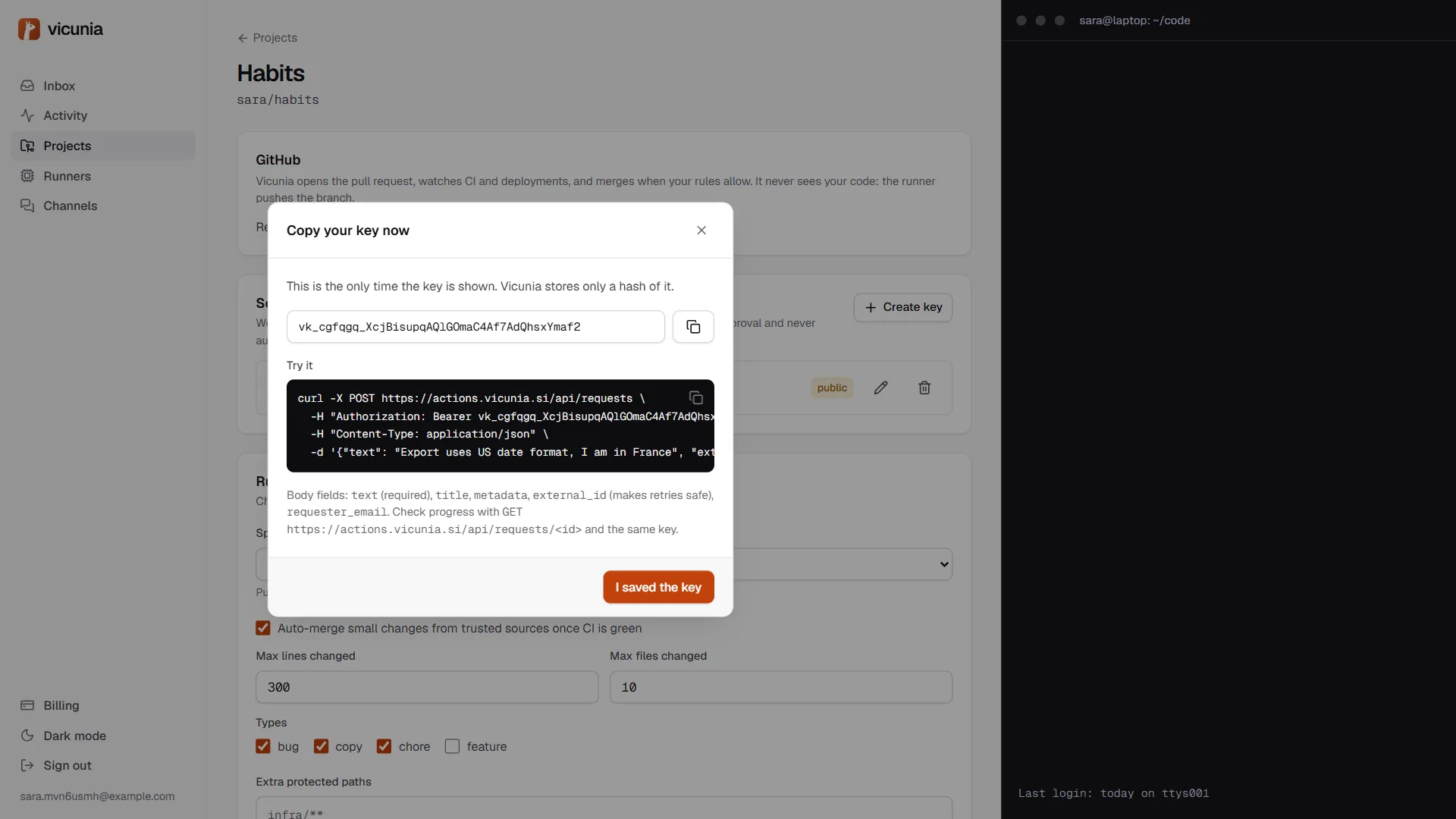
Your app sends each request as JSON:
curl -X POST https://actions.vicunia.si/api/requests \
  -H "Authorization: Bearer vk_…" \
  -H "Content-Type: application/json" \
  -d '{"text": "The CSV export shows dates in US format. I am in France.",
       "requester_email": "marie@example.fr",
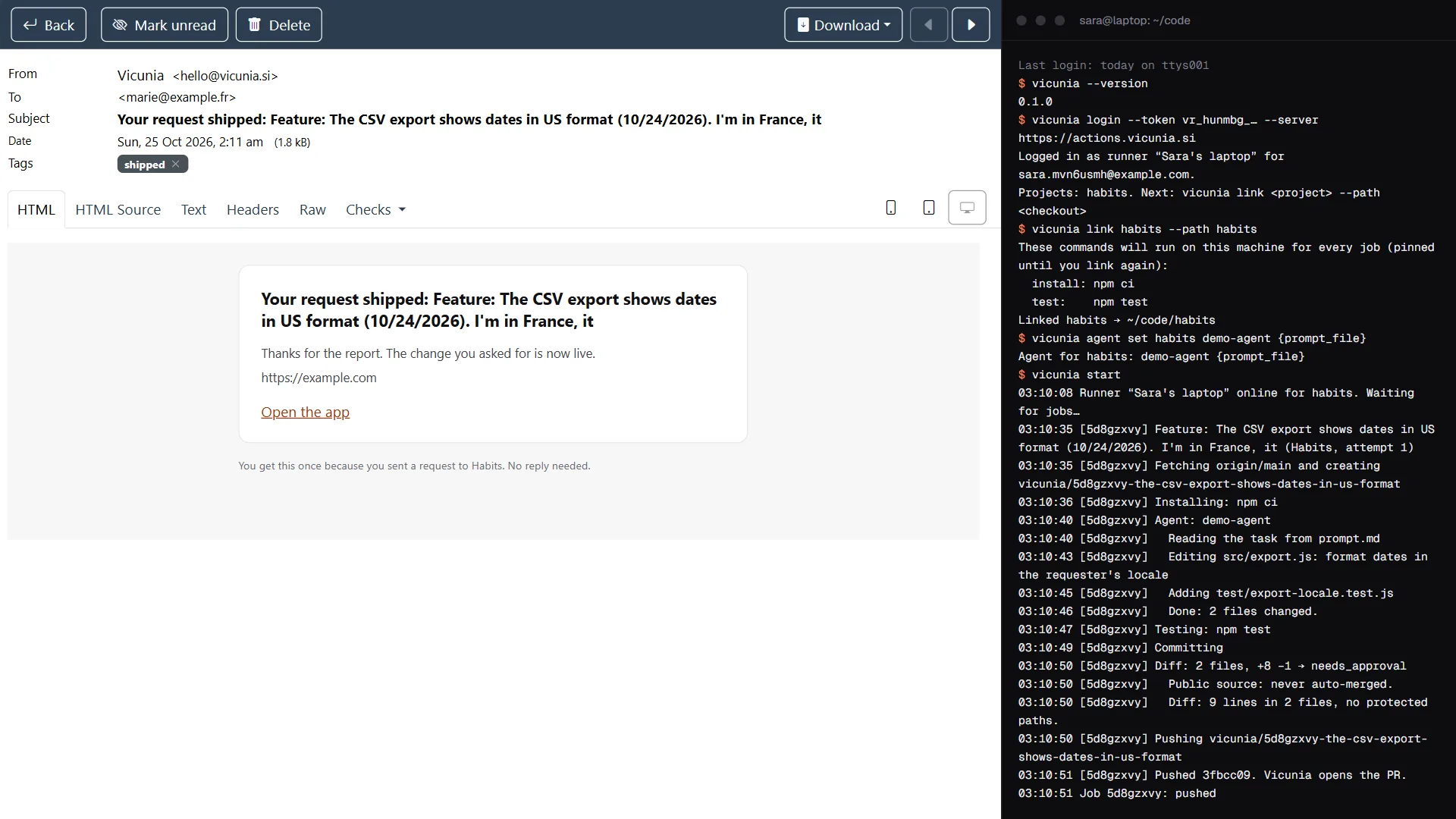
"external_id": "feedback-1042"}'textis required.title,metadata(up to 4 KB),external_idandrequester_emailare optional.external_idis your own id for the item. Sending it again returns the same request, so retries are safe, and each one gets its own job.requester_emailgets one short email when the change ships: the title and the link, nothing else.- The answer is
202with anidand astatus_url.GET https://actions.vicunia.si/api/requests/<id>with the same key returns the progress. Errors:401bad key,402monthly limit reached,429too many requests (retry after a minute).
To be told about every change instead of asking, edit the source and set a Callback URL. Vicunia POSTs the status there each time the job moves (queued, running, PR open, merged, shipped, failed…), signed with HMAC-SHA256. Show secret on the source gives the signing secret; check X-Vicunia-Signature against <X-Vicunia-Timestamp>.<raw body>.
From Telegram
Once Telegram is linked (next step), any message to the bot becomes a request. Start it with the project slug to choose the project: habits: export dates in the user's locale. Without a slug it goes to your default project.
Requests that look alike
A request without an external_id that matches an open spec is added to it as a vote, so ten users reporting the same bug make one spec.
7. Approve from Telegram and email
Open Channels → Connect Telegram, then Open Telegram and press Start. The link code works once and expires after 10 minutes.
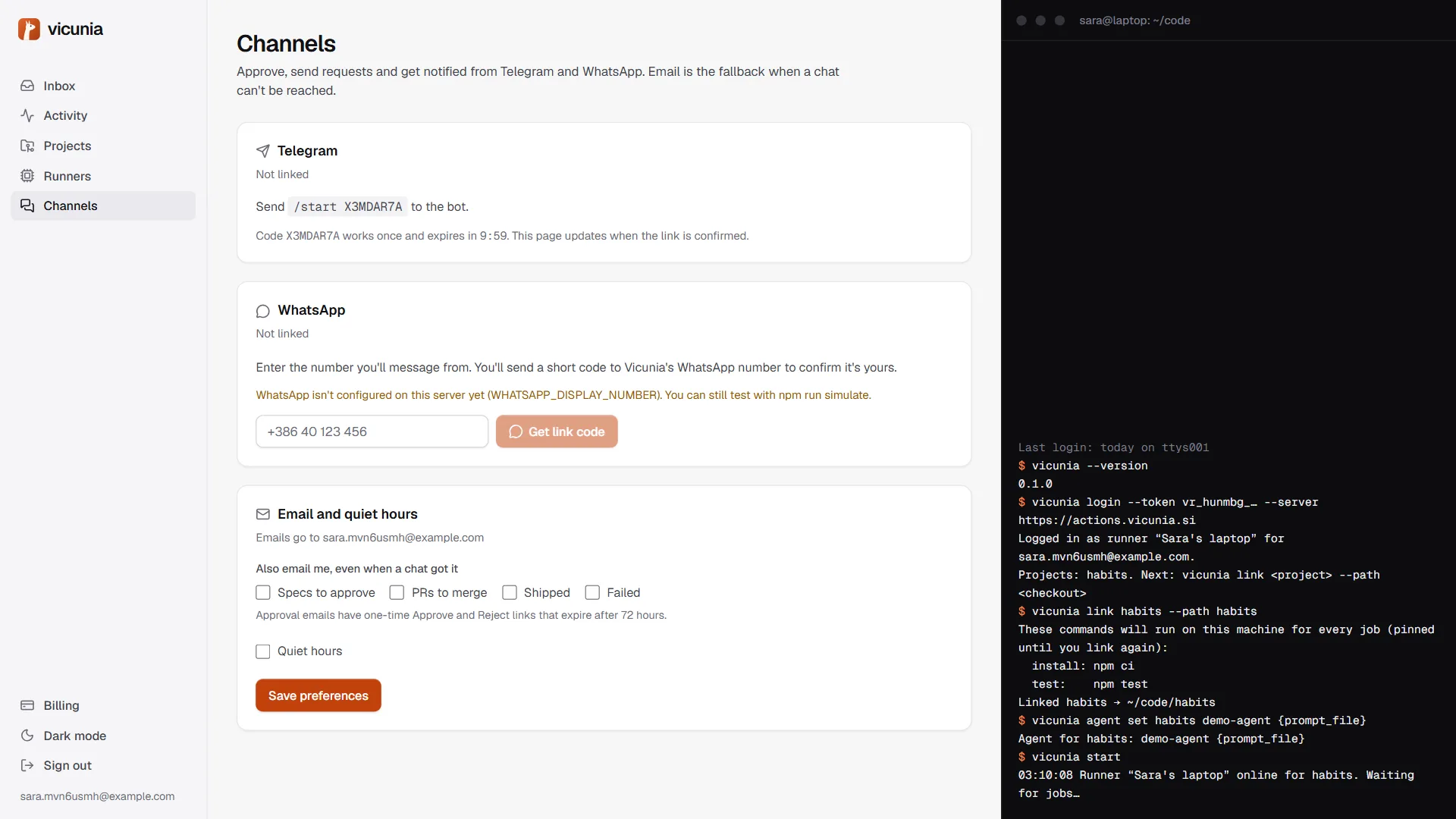
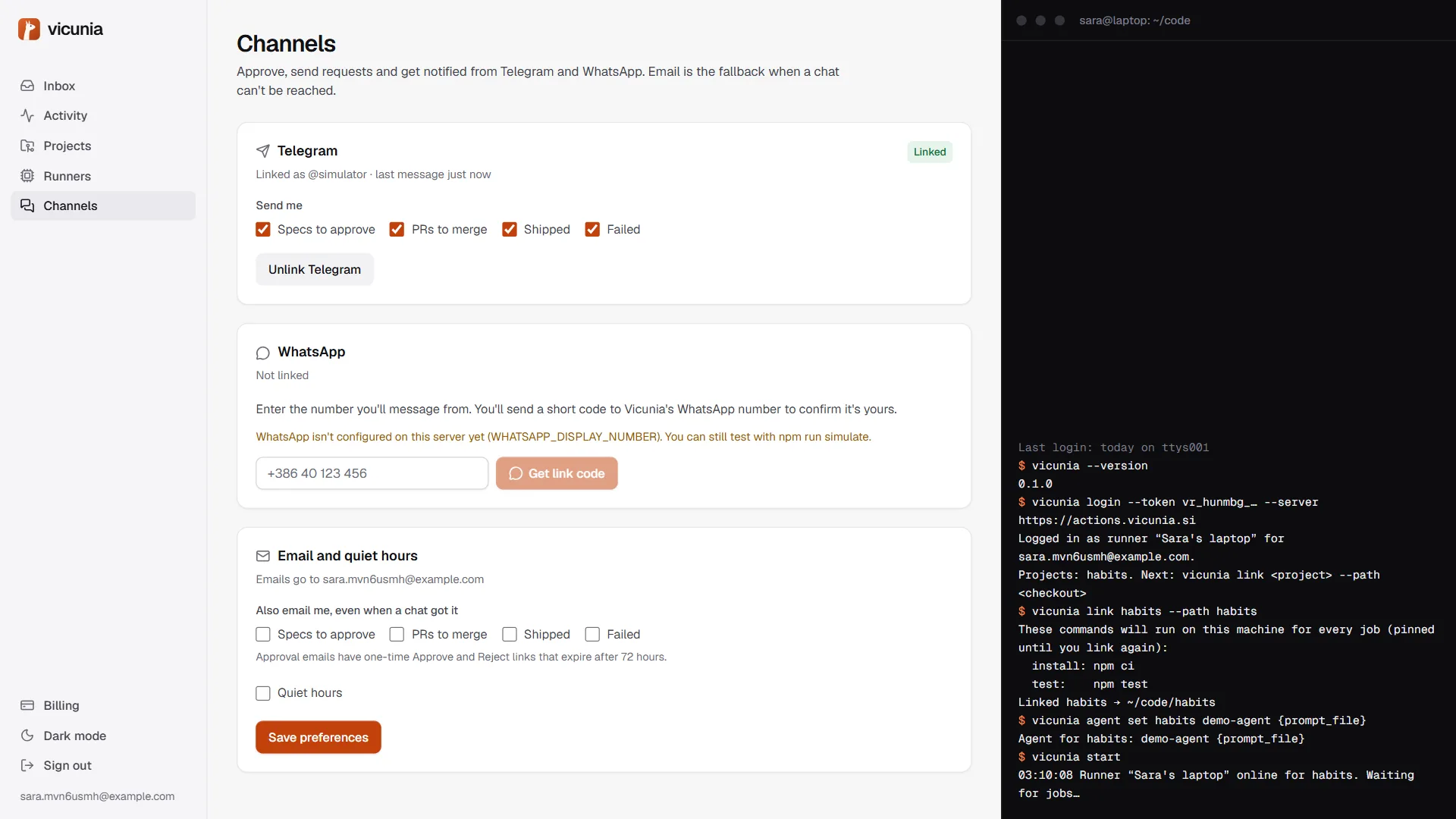
Each card on Telegram has buttons (Approve, Edit, Reject; Merge, Close; Retry) and is updated in place when anyone decides, from anywhere. Commands:
/inbox: specs waiting for you./status: queued and running jobs./projects: your projects./default habits: where requests go when you don't name a project./mute 8hpauses notifications,/unmuteresumes them.
Email needs no setup. When no chat is linked, or a chat message can't be delivered, the card goes to your account's email with Approve and Reject links. Each link works once, expires after 72 hours, and asks you to confirm, so mail scanners can't approve anything. Under Channels → Email and quiet hours you can choose events to always get by email, and quiet hours when chat stays silent.
8. Review the spec
Seconds after a request arrives, its spec is in the inbox:
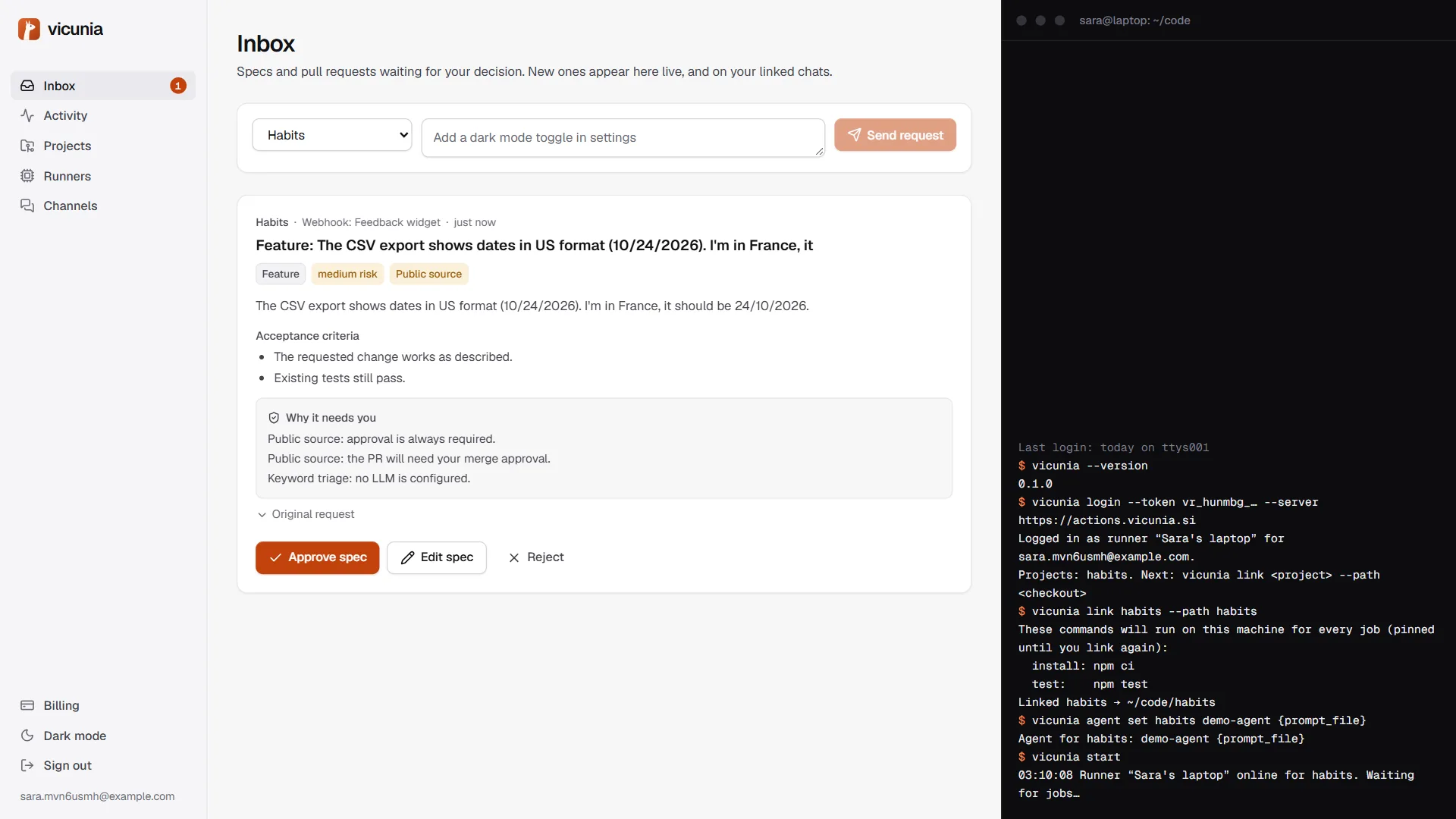
- A title, the type (bug, feature, copy, chore) and the risk.
- Acceptance criteria: what "done" means. The agent works from these.
- Why it needs you: the rule reasons. Here the request came from a public source, so approval is always required.
- The original request, folded away.
Approve spec queues the job. Reject closes it. Edit spec lets you fix the title, summary, criteria, type, risk or likely paths first.
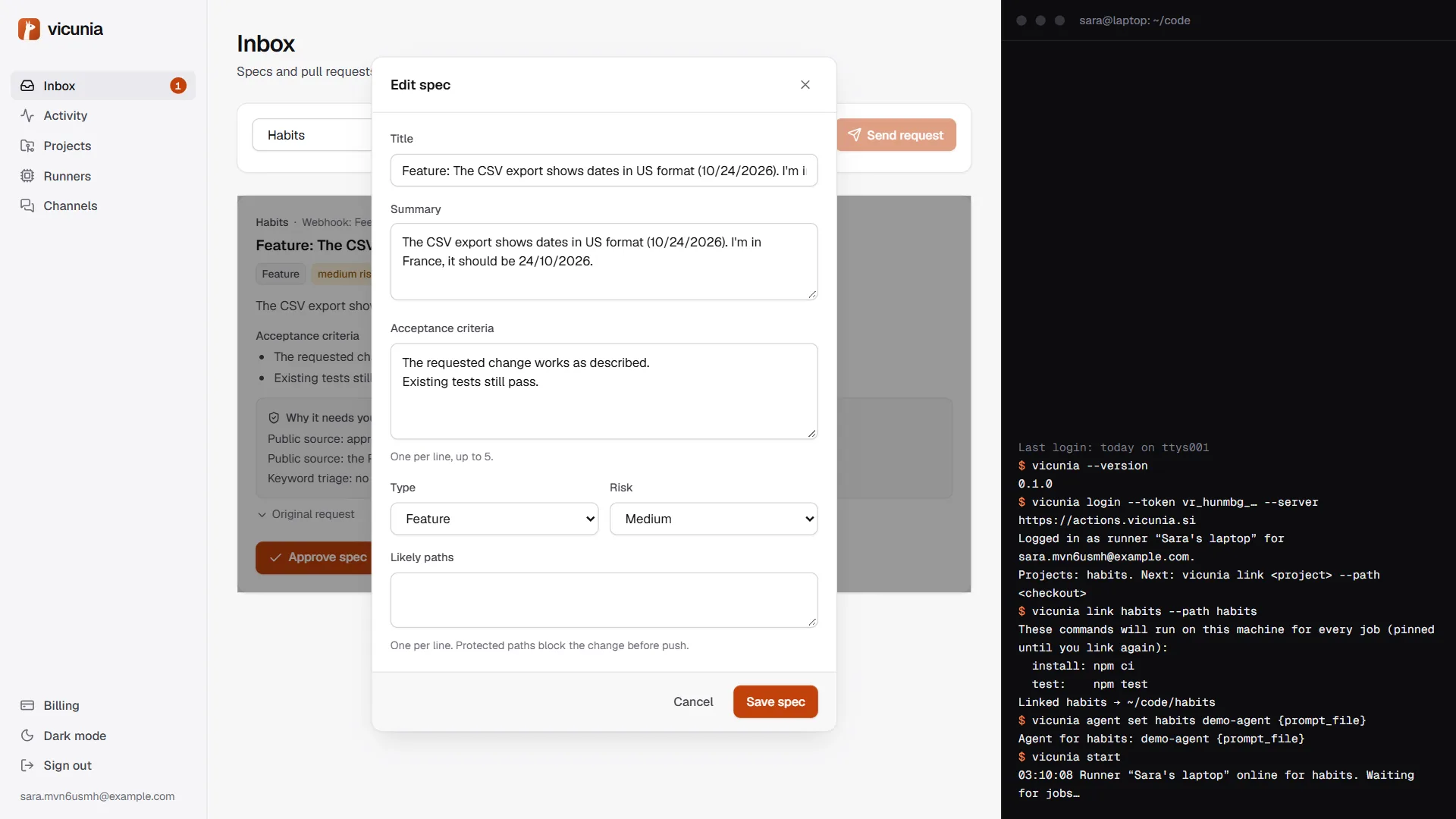
9. Watch the build
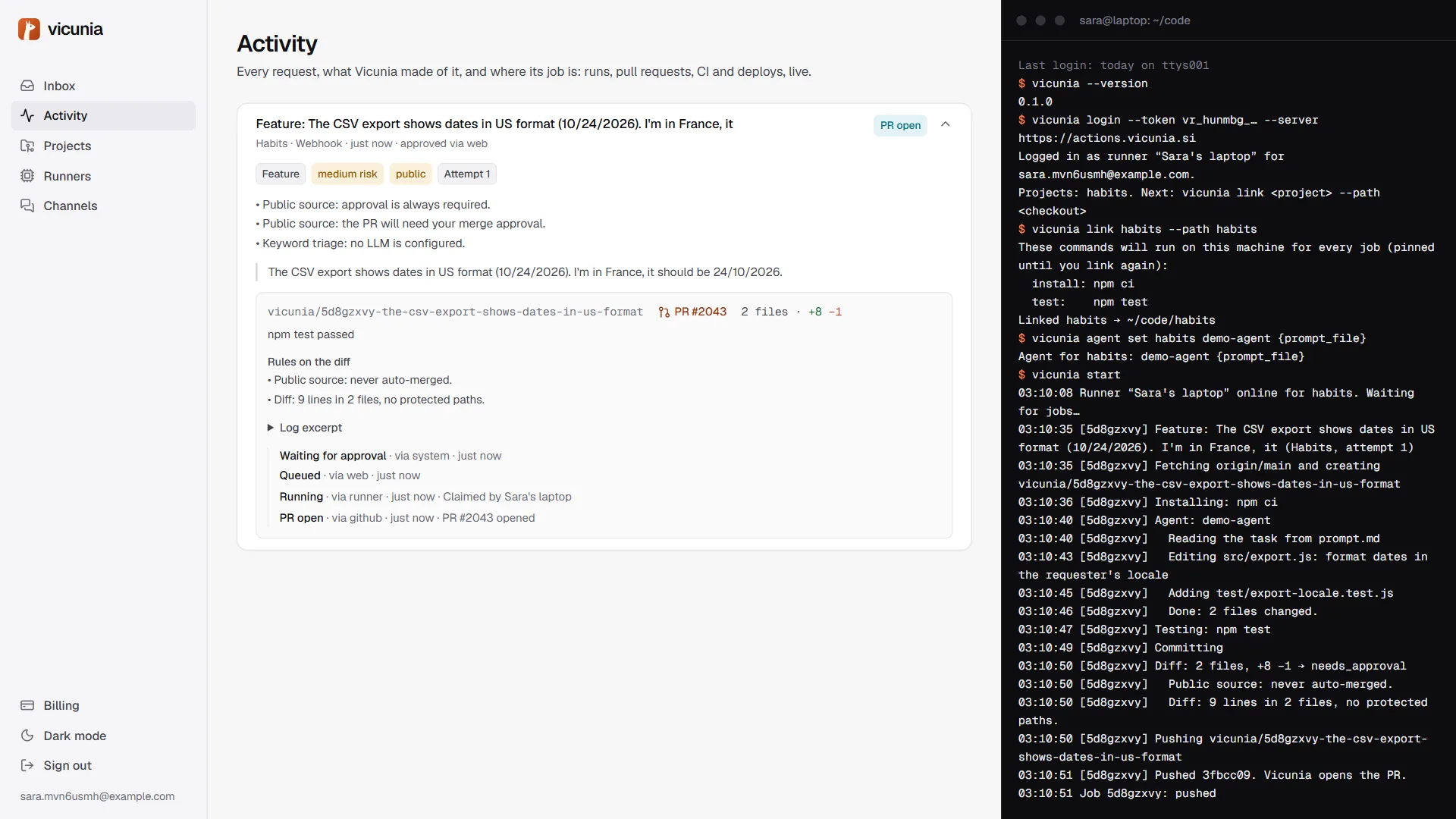
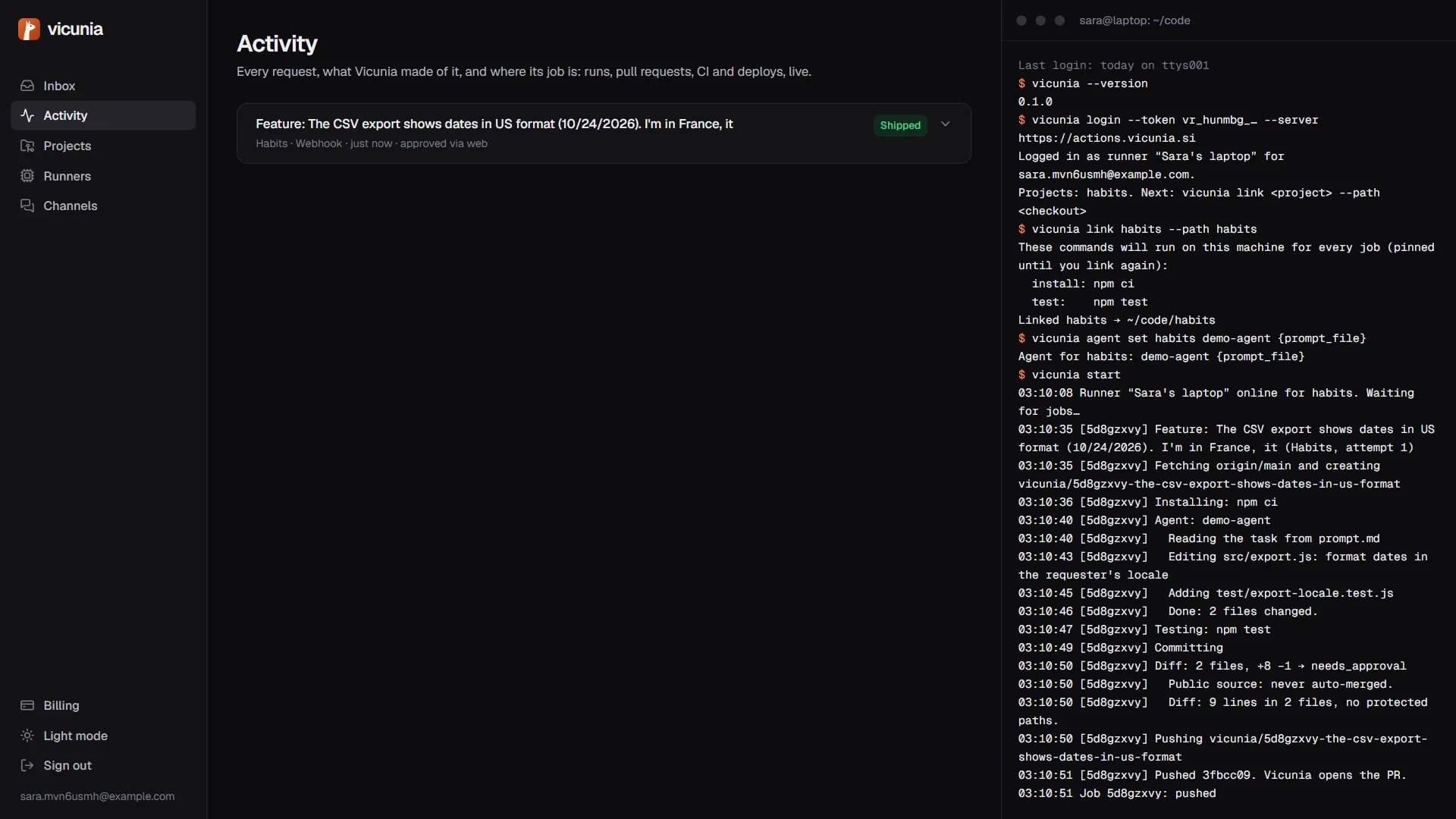
Activity shows every job live. Within seconds of your approval, the runner claims the job:
- Creates a git worktree on a new
vicunia/…branch. Your own working copy is never touched. - Runs the install command, then the agent with the task file.
- Runs the tests. If they fail, the agent gets one more try with the failures.
- Checks the rules on the real diff. A protected path blocks the job, and nothing is pushed.
- Pushes the branch. Vicunia opens the pull request.
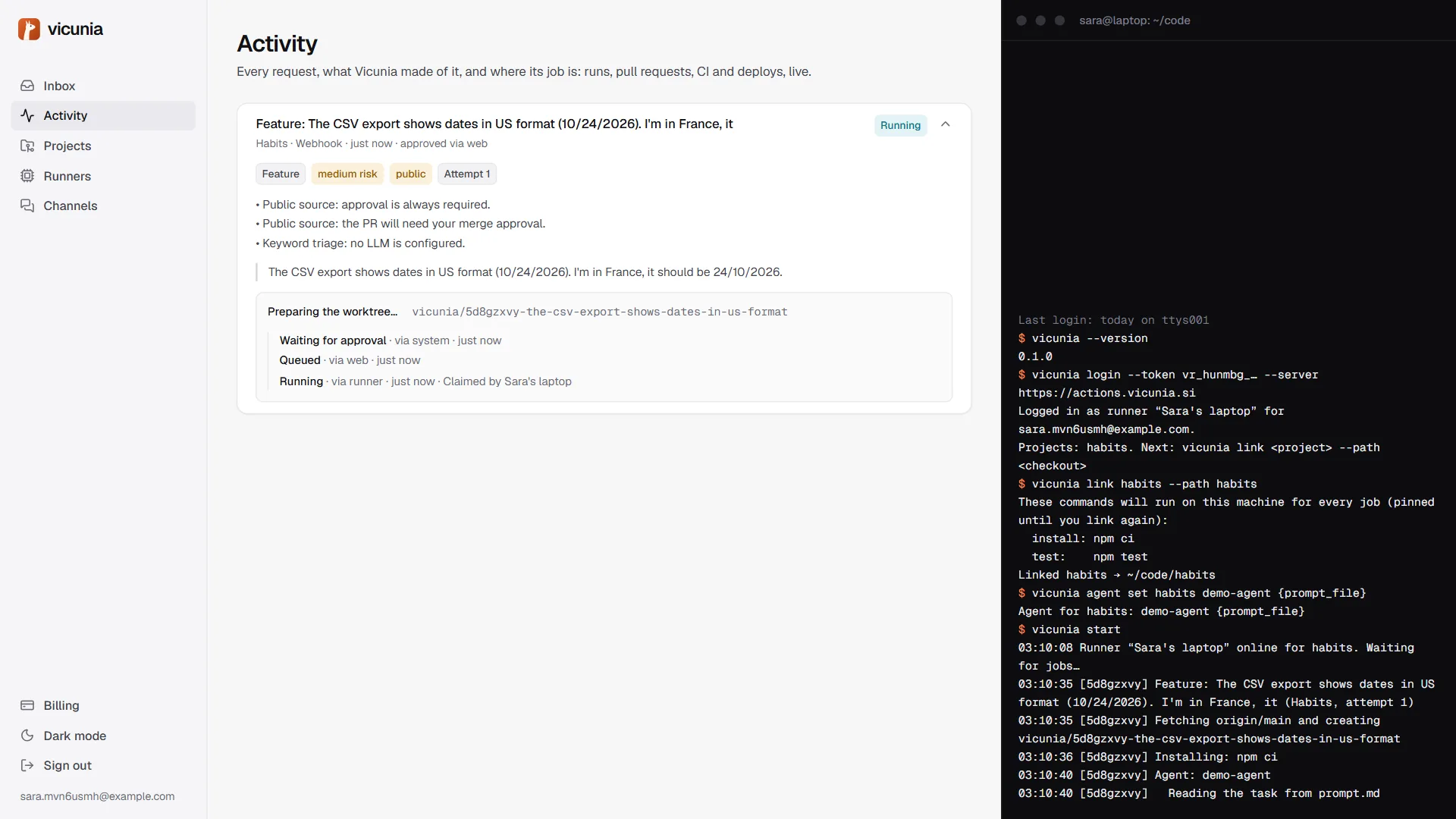
Vicunia only receives status, diff statistics and short, redacted log lines. If a job fails (no changes, tests still failing, blocked by a rule, runner gone), the card says why and offers Retry job.
10. CI and the merge
When CI finishes on the pull request, Vicunia reads every check:
- A failing check fails the job, with the check names and a Retry button.
- All green: the rules are checked again on the files as GitHub reports them. A small, trusted change within your auto-merge rules merges on its own (Pro). Everything else asks you.
- No checks at all after 10 minutes, or CI still running after 30: Vicunia asks you to merge.
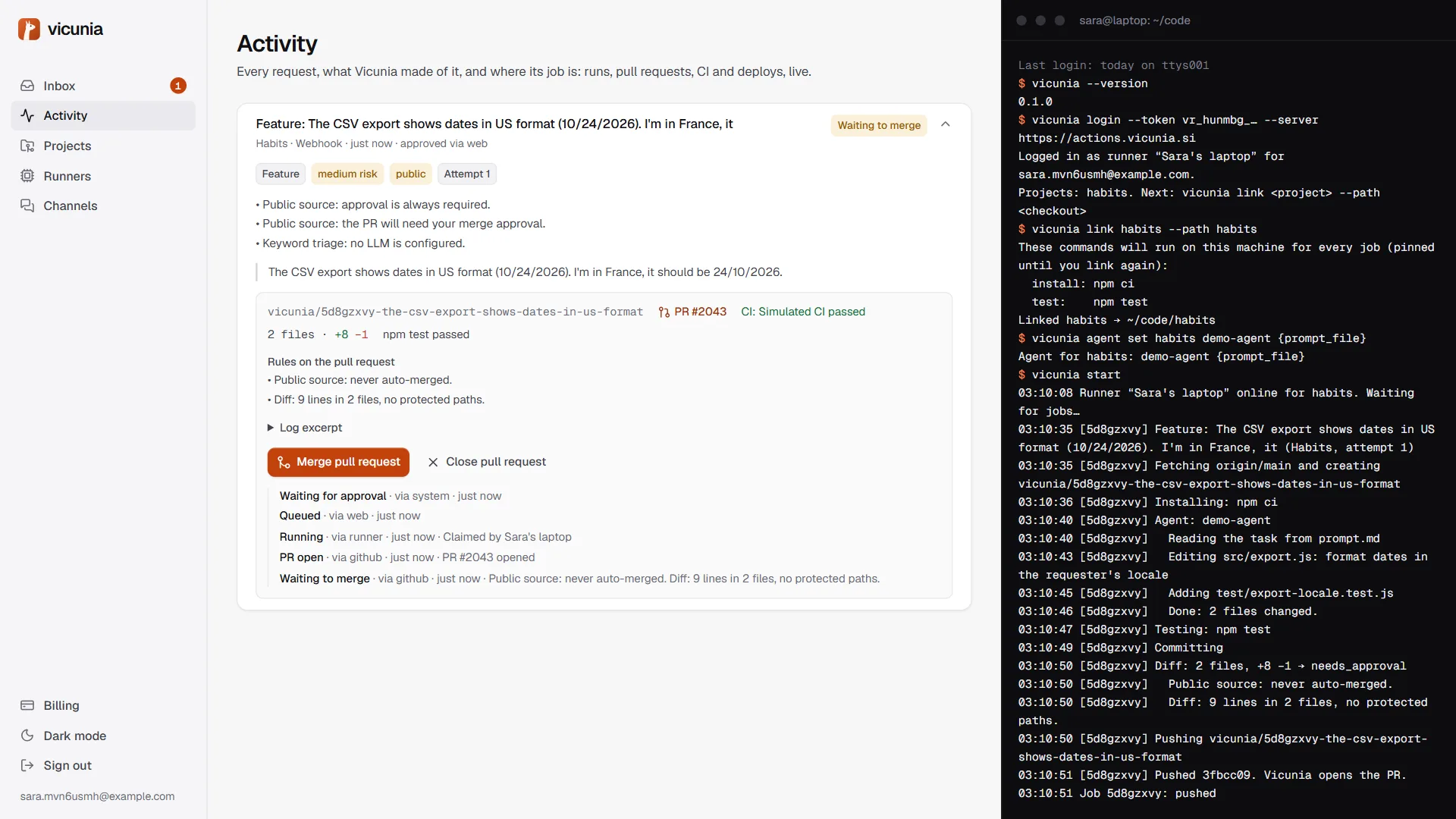
Merge pull request squash-merges exactly the commit CI and the rules saw. Close pull request drops it. Merging or closing by hand on GitHub works too; Vicunia follows along.
11. Deploy and shipped
After the merge, Vicunia waits for GitHub to report a successful deployment of the merge commit, then checks that the deploy URL answers. Then the job is shipped: you get a message, the source's callback gets the status, and the requester gets an email.
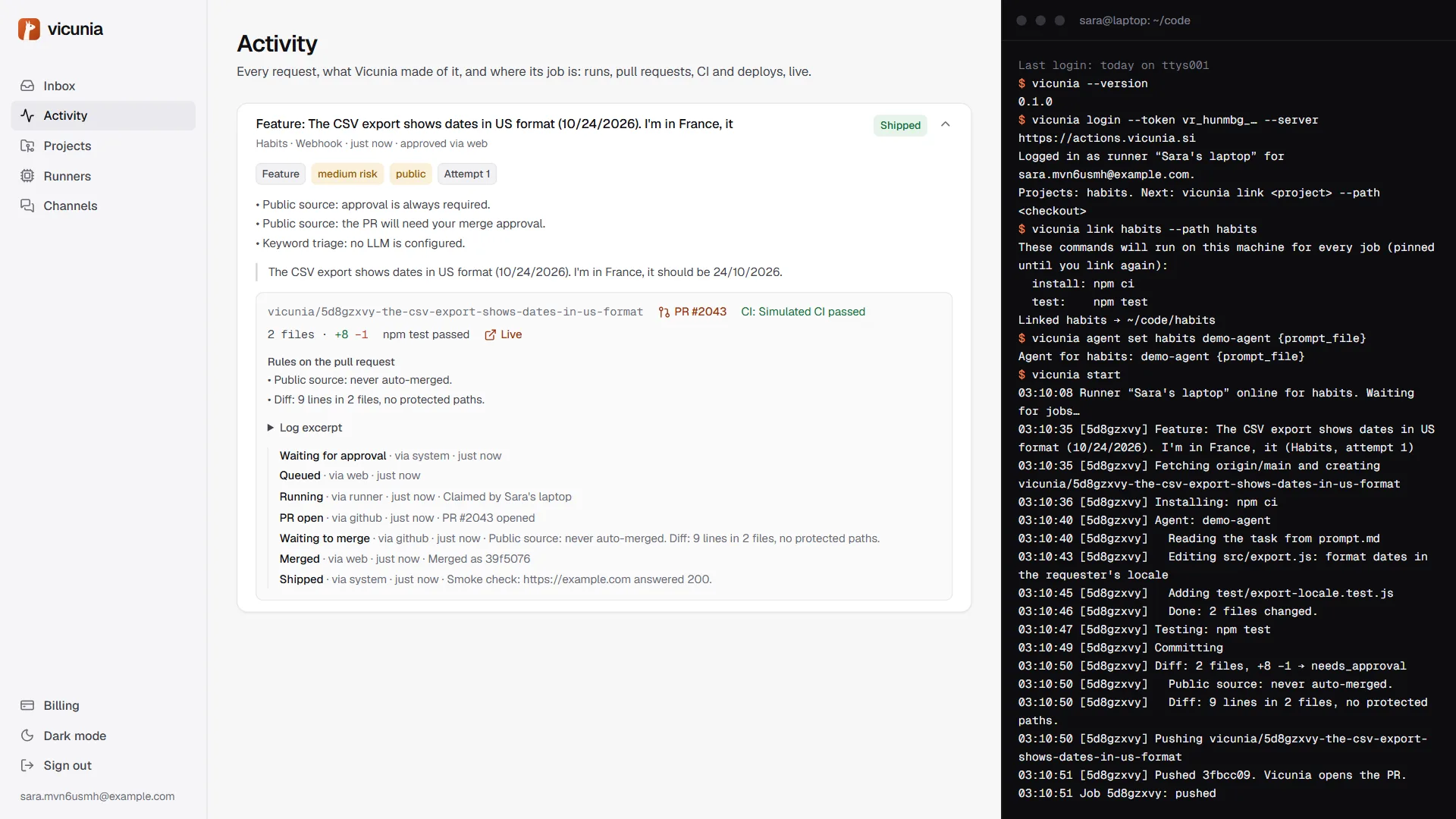
A failed deployment, a smoke check that fails three times, or no deployment within 30 minutes marks the job deploy failed, and you're told.
12. Plans and billing
- Free: 1 project, 30 requests a month, every pull request merged by you. No card needed.
- Pro, $39 a month: 10 projects, 500 requests a month, and auto-merge.
Billing (bottom left) shows your plan and this month's usage, which resets on the 1st (UTC). Upgrade to Pro opens a secure checkout; Manage billing changes the card or cancels. Requests over the limit are refused until next month, and nothing is deleted when you downgrade.
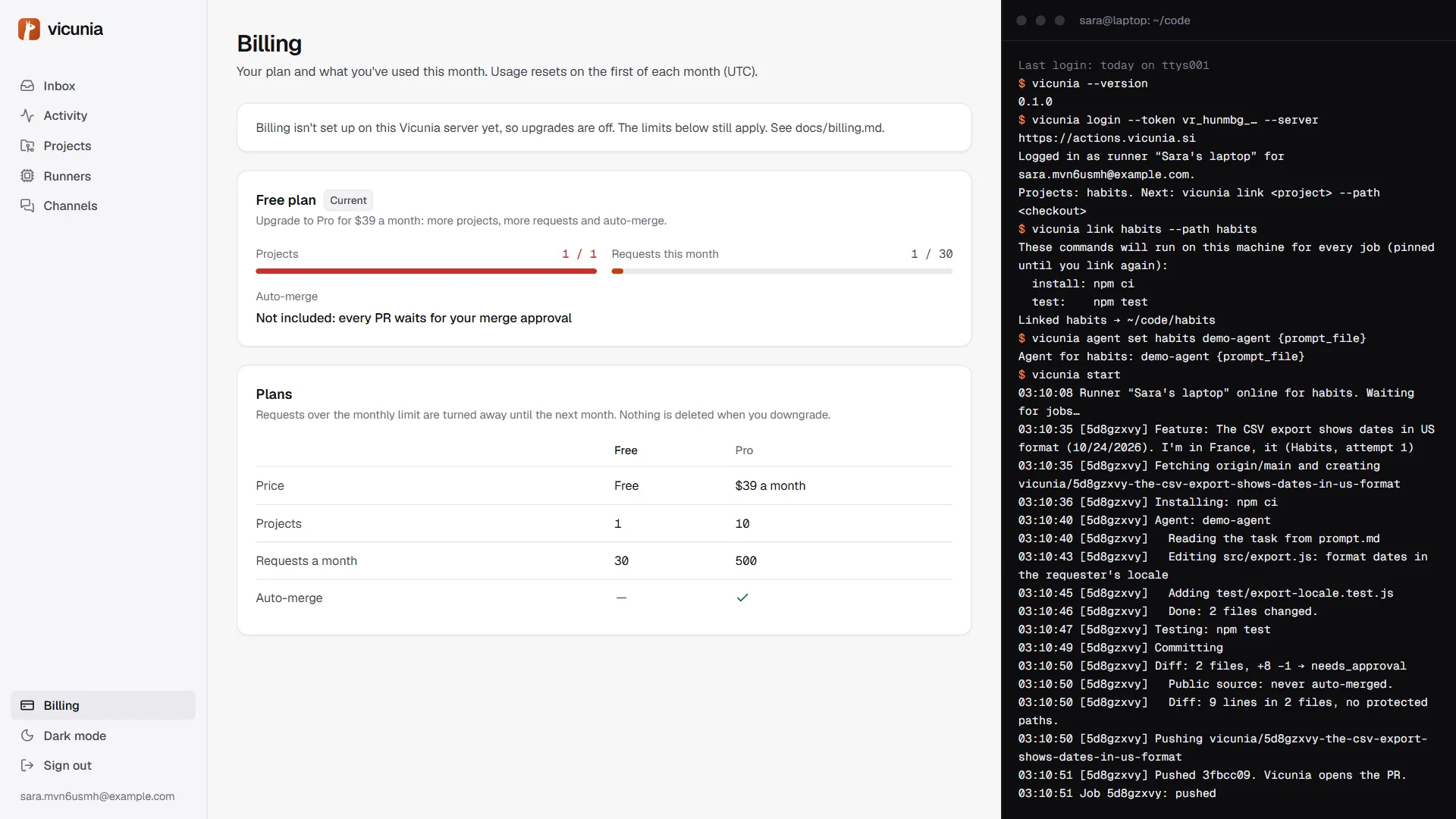
Everything also works on a phone and in dark mode (bottom left).
Troubleshooting
| What you see | What to do |
|---|---|
| An approved job stays queued | No runner is online for the project. Run vicunia start on a machine where the project is linked; /status in Telegram shows runners. |
| The runner says commands_changed | The install or test command changed in the project settings. Run vicunia link again to review and pin them. |
| The job failed with no_changes | The agent didn't change anything. Edit the spec to be more precise, then Retry job. |
| The job failed with tests_failed | The tests still failed after the agent's second try. Nothing was pushed. Check the log lines in Activity, then retry or fix it yourself. |
| The job is blocked | The diff touched a protected path. That change needs a human; nothing was pushed. |
| The pull request isn't merged automatically | Auto-merge applies only to trusted sources, within your limits, with green CI, on Pro. The card says which condition wasn't met. |
| GitHub refuses the merge | Allow squash merging in the repository, and check branch protection rules. |
| Deploy failed after the merge | Check that your host reports deployments to GitHub in the environment set on the project, or choose “As soon as the pull request merges”. |
| The webhook answers 402 | This month's requests are used. Upgrade in Billing, or wait until the 1st. |
Anything else: hello@vicunia.si.